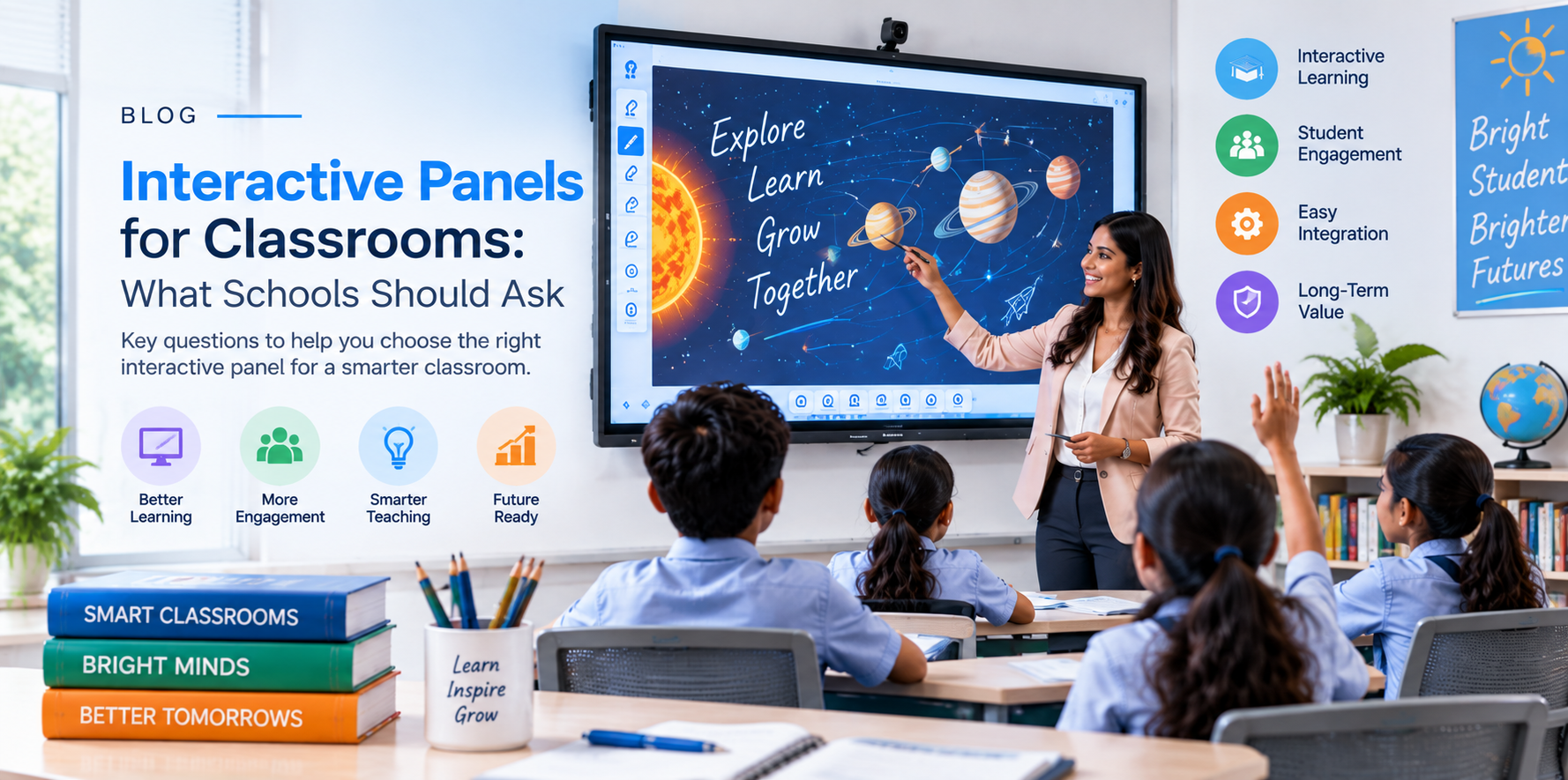
Screen size, mounting, software, and after-sales support for education institutes.
Interactive Panel Checklist: 15 Things Schools Should Check Before Buying
Interactive panels have become an important part of modern classrooms. They can support digital lessons, presentations, multimedia content, collaboration and interactive learning. However, choosing an interactive panel is not simply about selecting the largest screen or the model with the highest specifications.
Schools should consider display quality, touch performance, software, connectivity, installation, durability, support and total cost of ownership before making a purchase.
Here is a practical 15-point interactive panel checklist for schools.
1. Screen Size
Start by considering the classroom size and viewing distance.
Common interactive panel sizes include 55-inch, 65-inch, 75-inch and 86-inch. A larger panel can be useful in bigger classrooms where students sitting at the back need to clearly see the content.
For many classrooms, 65-inch or 75-inch panels can provide a good balance between visibility, usability and cost.
2. Display Resolution
Resolution determines how sharp text, images, diagrams and videos appear on the screen.
For modern classrooms, 4K UHD resolution (3840 × 2160) is generally preferable, particularly for detailed educational content, maps, scientific diagrams and presentations.
When comparing panels, check the actual native resolution rather than relying only on marketing terminology.
3. Touch Technology
Touch performance is one of the most important features of an interactive panel.
Check:
Number of simultaneous touch points
Touch accuracy
Response time
Palm rejection
Support for fingers and stylus
Writing smoothness
Multi-touch capability is particularly useful when teachers and students need to interact with the screen together.
4. Writing & Annotation Experience
A good interactive panel should provide a natural writing experience.
Teachers should be able to:
Write on the screen
Erase quickly
Change pen colours
Highlight content
Draw shapes
Annotate PDFs or presentations
Save notes
Share or export classroom content
Before purchasing, it is worth requesting a live demonstration of the writing and annotation features.
5. Operating System & Software
The panel's operating system and software ecosystem can significantly affect usability.
Check whether the panel provides:
Built-in operating system
Whiteboard application
Screen annotation
File management
Web browser
Classroom applications
Screen sharing
Software updates
Support for commonly used educational applications
Schools should also understand whether important software features require additional subscriptions or licences.
6. RAM & Internal Storage
If the interactive panel includes a built-in operating system, check its hardware configuration.
Look at:
RAM
Internal storage
Processor
Available storage
Expansion options
Adequate hardware helps the panel handle applications, presentations, videos and multitasking more smoothly.
7. Connectivity Options
A classroom panel should be able to connect easily with existing devices.
Look for appropriate connectivity such as:
HDMI
USB
USB-C
LAN/Ethernet
Wi-Fi
Bluetooth
Audio output
Display input/output where required
USB-C can be particularly convenient for connecting modern laptops with a single cable, depending on the panel and laptop configuration.
8. Screen Sharing
Wireless screen sharing can make classroom presentations much easier.
Teachers may want to display content from:
Laptop
Desktop computer
Tablet
Smartphone
Check how many devices can connect, whether multiple screens can be displayed simultaneously and whether the required software is easy to install and use.
9. Built-in Speakers
Audio is important for videos, online lessons and multimedia presentations.
Check:
Speaker output
Sound clarity
Volume
Audio connectivity
Support for external speakers
For larger classrooms and auditoriums, external audio equipment may still be preferable.
10. Camera & Microphone Support
If the school plans to conduct:
Online classes
Video conferences
Hybrid teaching
Remote guest lectures
Online training
then camera and microphone compatibility becomes important.
Some interactive panels provide integrated cameras and microphones, while others require external devices.
Schools should check the compatibility with the video-conferencing software they actually use.
11. Screen Protection & Durability
Classroom equipment needs to withstand frequent daily use.
Ask about:
Tempered or strengthened glass
Anti-glare surface
Scratch resistance
Fingerprint resistance
Protection against accidental impact
Expected operating life
A durable panel can reduce maintenance problems over years of classroom use.
12. Brightness & Viewing Angle
A classroom can have windows, overhead lighting and sunlight. Therefore, display brightness and visibility matter.
Check the panel under real classroom lighting, rather than only looking at specifications.
Also consider:
Viewing angle
Glare
Reflection
Colour reproduction
Visibility from the back of the classroom
A technically impressive display may not perform well if it becomes difficult to read under strong classroom lighting.
13. Installation & Mounting
Don't forget about installation.
Check whether the supplier provides:
Wall mounting
Mobile stand options
Installation
Cable management
Height adjustment
Power requirements
Safety considerations
The correct mounting height is especially important in schools because students of different ages may use the panel.
14. Warranty & After-Sales Support
The purchase price is only one part of the investment.
Before buying, ask:
Who will provide service if the panel develops a problem?
Check:
Warranty period
On-site support
Service location
Response time
Availability of spare parts
Software update policy
Installation support
Training for teachers
For schools, reliable after-sales support can be as important as the hardware specifications.
15. Total Cost of Ownership
Finally, don't compare panels only by their initial price.
Consider the complete cost, including:
Interactive panel
Wall mount or stand
Installation
Computer/OPS module if required
Software licences
Accessories
External speakers
Camera and microphone
Warranty extensions
Maintenance
Future upgrades
A slightly higher initial investment may provide better value if the panel offers stronger hardware, software support and service over its useful life.